
Using plugins
A plugin adds step types for jobs and tools for the AI assistant. QueryLane downloads each plugin as a signed package and runs it as a separate program. It installs only packages signed with the QueryLane plugin key.
The marketplace has two official plugins, both built for Macs with Apple silicon:
- Telegram sends messages, result files and run reports to a Telegram chat through your bot.
- Browser runs headless Chromium in steps that open web pages and extract data.
Install a plugin
- Open Settings > Plugins. The page lists Installed and Marketplace plugins.
- In Marketplace, click Install next to the plugin.
- Check the publisher, the download size and the permissions in the dialog, then click Install.
QueryLane downloads and verifies the package and installs the components the plugin needs. When it finishes, the plugin moves to Installed with the status Ready.
| Permission | What it allows |
|---|---|
| Network access | Opens websites and calls APIs |
| Downloads components | Downloads a runtime or a browser into the plugin folder |
| Runs programs | Starts its own processes, such as a browser |
| User files | Reads and writes files you point it to |
If a plugin needs a newer QueryLane, the marketplace shows Needs QueryLane {version} or later instead.
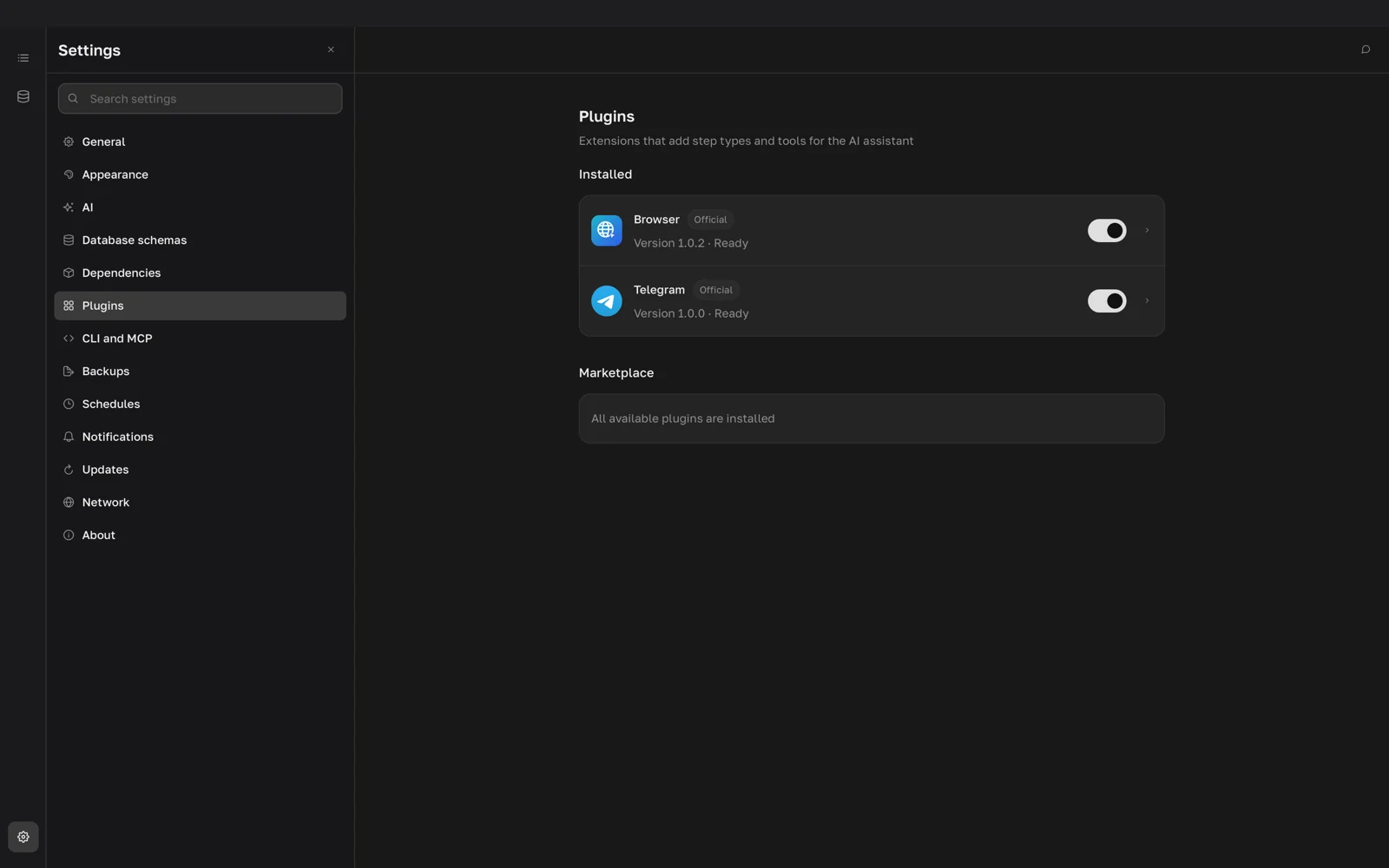
Manage an installed plugin
Click a plugin in Installed to open its page:
- Status shows the version. Click Update to {version} when a newer version is available, or Set up when the status is Needs setup.
- Enabled turns the plugin off and on. A disabled plugin does not run steps or AI tools.
- Plugin folder > Open shows the plugin files in Finder.
- Remove plugin removes it. Job steps that use it stay and work again after you reinstall it. Select Also delete downloaded components, browser profiles and cookies to clear its data too.
- In Data, Reinstall downloads the components again, and Clear next to Saved sessions deletes cookies and website sign-ins.
Settings and presets
A plugin setting appears in one of three places: on the plugin page as defaults for every step, in each plugin step, or in the job's Notifications section.
On the plugin page, Settings set switches between Default settings and presets. A preset changes only the settings you set in it. Use New preset, Rename preset and Delete preset to manage them.
A value comes from the nearest place that sets it: the plugin's default, your Default settings, the preset a step picks, then the step itself.
Plugin steps in jobs
When a plugin is installed, enabled and ready, its step types join the step type list under their own names, such as Telegram message or Web page. A new step starts with the plugin's starter code.
Under the editor, pick a Plugin preset and use Step settings to change plugin settings for this step only. Secret settings, such as tokens, stay on the plugin page. Plugin steps time out after 10 minutes by default.
If the plugin is not installed, disabled or not set up, the step shows a warning and does not run. Fix it with Enable, Set up or Open plugins.
Screenshots, pages and files that plugin steps save appear under Artifacts in the run history. See Runs and artifacts.
Run notifications
A plugin that reports runs, such as Telegram, adds a Notifications section to the job editor.
- Open the job in the editor.
- In Notifications, turn on Notify next to the plugin.
- Set the report options. Pick a Plugin preset or use Job settings to change plugin settings for this job only.
The plugin hears about every full run: runs from the app, the command line or an agent, and scheduled runs. Its settings decide which ones it reports. Step tests and partial runs do not notify, and a failed notification does not change the run result.
Plugin languages
The Languages row on the plugin page lists the languages a plugin has texts in. A plugin without texts in the interface language shows a No translation chip and uses its fallback language. QueryLane passes the interface language to the plugin, so texts the plugin writes, such as run reports, can follow it.
Shared jobs and the assistant
Exported jobs keep plugin settings except secret ones. When you import jobs with plugin steps, the Plugins section of the import dialog lets you install, set up or enable what they need. See Share jobs.
The assistant can read a plugin's guide, call its tools and write plugin steps. It asks before a call that drives a plugin, such as opening a page in the browser.