
Results and editing
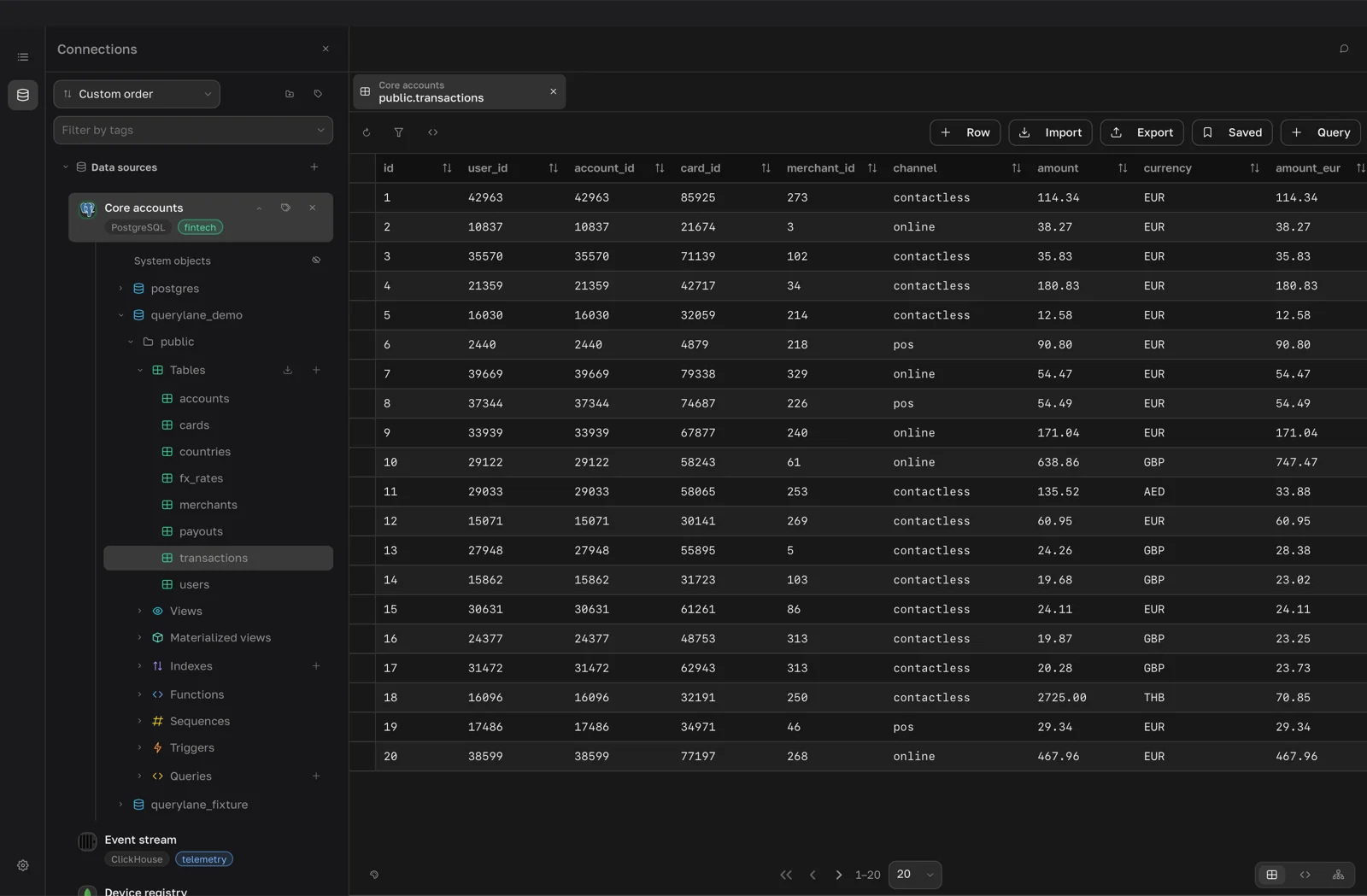
Table data and query results appear in the same grid. You open table data by double-clicking a table, view or collection in the explorer, and query results appear under the query editor.
Switch the view
Use the Table, JSON and Tree switch at the bottom of the result. The switch changes only how the current page is shown, and the query does not run again. If the page holds large values that QueryLane has not loaded yet, it loads them first.
Page through results
The pager under the grid moves between pages and sets the page size: 20, 50, 100, 200 or 1000 rows. The default size is set in Settings > General > Rows per page > Connections and queries.
- In a query tab, QueryLane keeps the result on disk and reads each page from it, so paging does not run the query again. The pager shows the total row count.
- In a table tab, each page is read from the database. When the exact row count is unknown, the pager shows the current range without a total.
Sort and filter
Sorting and filters work in table and collection tabs. The database does the work, so they cover all rows, not only the current page.
- To sort, click the sort icon in a column header and choose Ascending, Descending or Clear sort.
- To filter, click Filters (the funnel button) in the toolbar. Add conditions with Filter, nest them with Group, switch each group between AND and OR, then click Apply. Reset removes the filters. QueryLane remembers the filters of each table.
- Show query (the code button) shows the query QueryLane runs for the current view.
In a query tab, sort and filter in the query itself, for example with ORDER BY and WHERE.
Row actions
Right-click a row, or select rows with the round selectors on the left and use the toolbar buttons:
- Show row opens the row as JSON (Show rows for several).
- Copy as JSON copies the rows.
- Edit opens the row as JSON. Change it and click Save.
- Duplicate opens a copy of the row in Add row. Change it and click Add.
- Delete row asks for confirmation, then deletes the selected rows.
In a query tab, only Show row and Copy as JSON are available. Export saves the result to a file, see Import and export.
Edit cells in place
You can edit data in tables of PostgreSQL, MySQL, SQLite and their compatible engines, and in MongoDB collections. A SQL table needs a primary key or a unique index so that QueryLane can find the row again. Views, query results, ClickHouse tables and local files are read-only.
- Click a cell.
- Type the new value.
- Press Enter or click outside the cell.
The change is written to the database as soon as you finish the edit. There is no separate save step and no undo. If the value is unchanged, nothing is sent. If the database rejects the value, the cell returns to its old value and shows the error.
JSON objects and arrays, long text and multi-line text open in a value editor instead. Edit the value and click Apply, or press Cmd+Enter. Apply also writes the value to the database right away. Press Esc to close the editor without changes.
Fields that the database generates or does not allow to change stay read-only.
Add a row
- Click Row in the toolbar. An empty row appears at the top of the grid.
- Fill in the cells. Fields that the database fills in, such as auto-increment keys, are left to the database.
- Press Enter or click Save to insert the row. Press Esc or click Cancel to drop it.
Delete rows
Deleting is the only change that asks first. Select rows, then click the delete button in the toolbar or choose Delete row in the context menu. Confirm with Delete in the Delete row? dialog.