
Explorer
The explorer is the object tree under each open connection in Connections. It shows the server's databases, their objects and your saved queries.
Browse the tree
- Double-click a connection under Data sources to connect and expand it.
- Click a database, schema or group to expand it.
- Double-click an object:
- a table, view or collection opens its data in a new tab, see Results and editing;
- a saved query opens in the query editor;
- other objects, such as functions, indexes or triggers, show their DDL.
- Right-click any node for its actions.
What each engine shows
| Engine | Levels | Groups |
|---|---|---|
| PostgreSQL, CockroachDB, YugabyteDB | database > schema | Tables, Views, Materialized views, Indexes, Functions, Sequences, Triggers, Queries |
| MySQL, MariaDB, Percona Server | database | Tables, Views, Indexes, Procedures and functions, Triggers, Events, Queries |
| MongoDB | database | Collections, Views, Indexes, GridFS buckets, Queries |
| ClickHouse | database | Tables, Views, Materialized views, Indexes, Dictionaries, Queries |
| SQLite | database | Tables, Views, Indexes, Triggers, Queries |
| Local files | database | Datasets, Queries |
In PostgreSQL, Functions lists procedures too. See also MongoDB and CSV and JSON files.
System objects
System schemas, databases and tables, such as pg_catalog in PostgreSQL or the system database in ClickHouse, are hidden. To show them for a connection, click the eye button next to System objects at the top of its tree.
Object actions
The context menu shows only what the engine supports:
- Open data opens the rows of a table, view or collection.
- New query opens an editor tab for this database or schema. On a table or collection, the tab starts with a query that reads from it.
- Show DDL shows the definition and Metadata of the object. In MongoDB the item is Show metadata.
- Copy name and Rename.
- Delete table, Delete view, Delete collection or Delete index, after a confirmation. In PostgreSQL you can tick Drop dependent objects too.
- Import and Copy data move data into or out of the object, see Import and export.
- Refresh on a database, schema or group reloads its contents from the server.
Saved queries in the tree
Each database, or schema in PostgreSQL, has a Queries group with the queries saved there. Double-click a query to open it, or right-click it for Open, Duplicate, Rename and Delete. To start a query in that place, hover Queries and click New query.
Create and edit tables
PostgreSQL, MySQL and SQLite tables can be created and changed in a structure editor. ClickHouse can create tables, MongoDB collections.
- To create a table, hover Tables and click Create. To change one, right-click it and choose Edit schema.
- On the Fields tab, use Add field and Delete selected fields, and set Name, Type, Length, Not null, PK and Default. Select a field to add a Comment or Business context, a note for the AI assistant that QueryLane keeps on your Mac, not in the database.
- Check the Changes list. For an existing table, Indexes, Foreign keys and Constraints show what it already has.
- Open the DDL tab to read the statements QueryLane will run. For an existing table, switch between Changes and Create to see the change script or the full
CREATEstatement. Copy DDL copies it. - Click Apply (or Create for a new table). QueryLane runs the statements right away and reloads the tree.
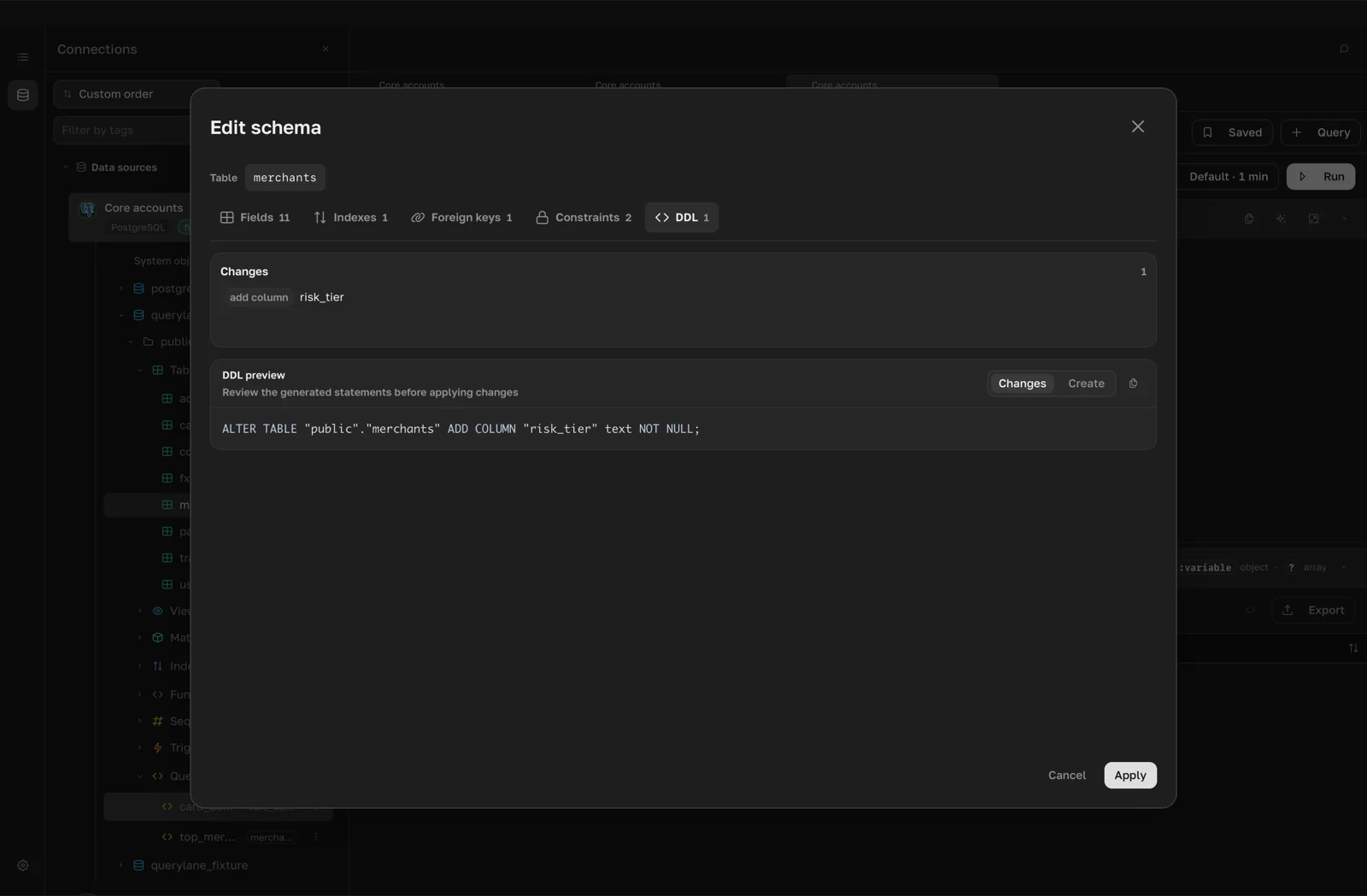
When SQLite cannot change a column in place, QueryLane rebuilds the table with its data, indexes and triggers, and the DDL tab says so.
To add an index, hover Indexes and click Create, or choose Create index on a table. Enter an Index name and Fields, check Preview and click Create index.
Refresh the cached schema
The structure editor, autocomplete and the AI assistant read table structure from a schema cache. If a table changed outside QueryLane and the editor cannot find its fields, open Settings > Database schemas and click Refresh next to the connection. A cache older than Cache lifetime refreshes the next time it is used.