
Build a job
A job is a set of steps that pass data to each other. This guide builds a job with two steps: a SQL query and a JavaScript step that transforms its rows. You need a connection from Connect a database.
Create the job
- Click Jobs in the left rail.
- Click Create job at the top of the job list. QueryLane adds New job and opens it in the editor.
- Change Job name and, if you like, add a Description.
Add a SQL step
Under Execution steps, choose SQL query in Step type and click Add step.
Enter a Step name, for example
Orders.In Data source, pick your connection.
Replace the starter code with your query:
sqlSELECT id, customer_id, total FROM orders WHERE created_at >= now() - interval '7 days'
The step result is the array of rows returned by the last statement.
Add a JavaScript step
Choose JavaScript code in Step type and click Add step.
Name it, for example
Big orders.Clear the starter code. Under Step results:, click Orders. QueryLane inserts a token such as
${step_1b9d6bcd-bbfd-4b2d-9b5d-ab8dfbbd4bed}at the cursor. You can also type${and pick the step from the suggestions.Write the step code around the token. The code is the body of an async function, so
returnthe result:jsconst orders = ${step_1b9d6bcd-bbfd-4b2d-9b5d-ab8dfbbd4bed}; return orders.filter(order => order.total > 100);
The id in your job is different. Hover over the token to see which step it points to, and Cmd-click it to jump to that step.
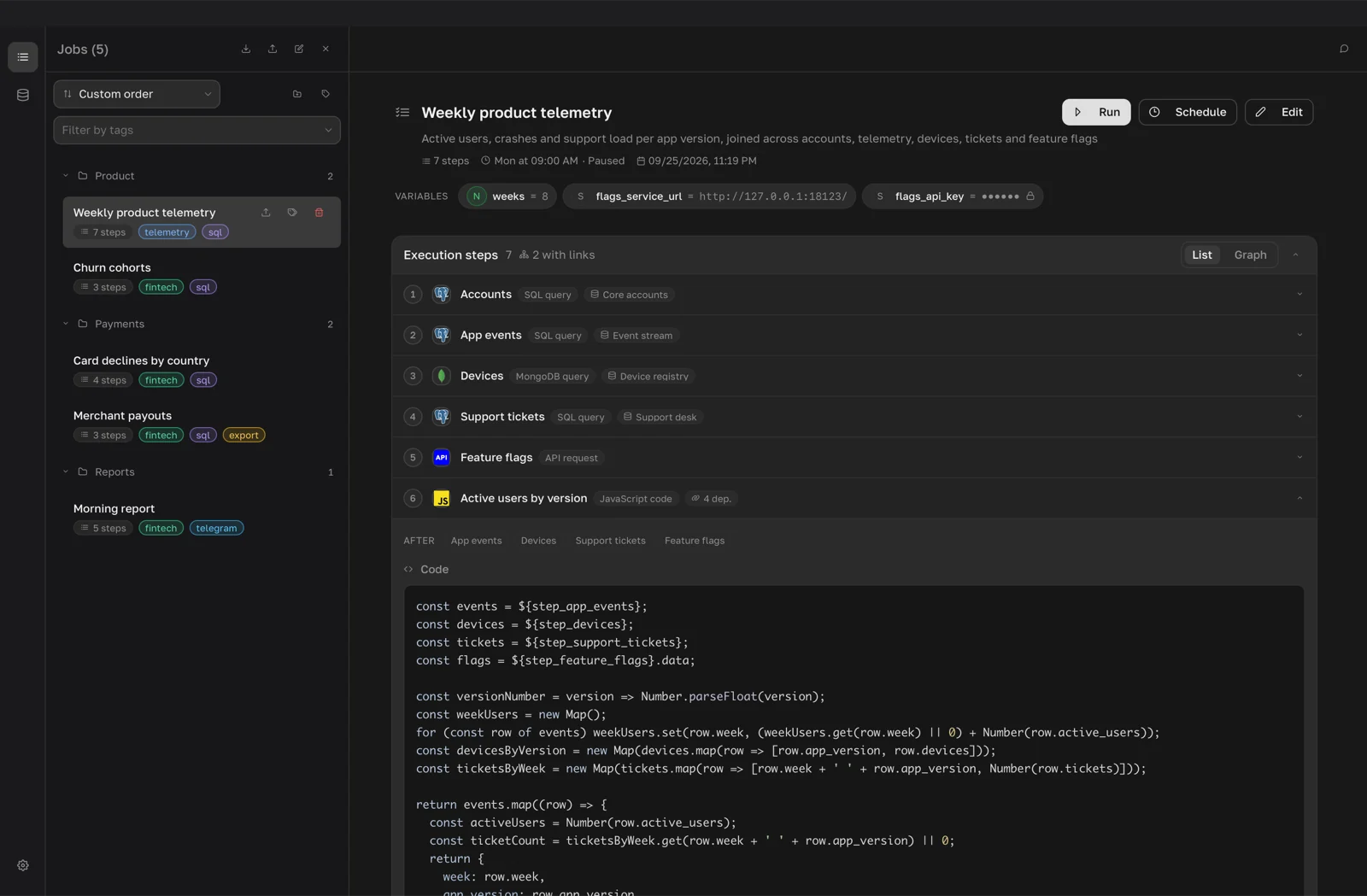
How step references work
Before the step runs, QueryLane replaces ${step_id} with the result of that step written as a JSON literal. In the example above, orders becomes a plain array of row objects.
Referencing a step also makes it a dependency. From code: Orders appears under Dependencies on other steps, and the JavaScript step waits for Orders to finish. Steps without dependencies can run in parallel. Use Dependencies on other steps only when a step must wait for another without using its data.
Step ids never change, so renaming, moving or deleting other steps does not break a reference. Tokens inside comments are ignored.
Save and run
- Click Save, then Close editor.
- Click Run in the job header. While the job runs, the button changes to Stop.
To try a step before saving, use the Debug run buttons in its panel, such as Run only. Debug runs use the unsaved draft.
Read the results
Every run is added to the top of Execution history with its number, Successful or Error, the time and the duration.
- Click a run to expand it. The result of the last step appears with the Table, JSON and Tree views and an Export button.
- Under Steps (metadata), click Details next to a step to see its code and a preview of its result.
When a run fails, the expanded entry shows the failing step and the error message, with Edit step and Run from step buttons. Clear history removes all runs of the job.
Next steps
- How jobs work covers dependencies, variables and parallel runs.
- JavaScript steps explains the code environment and npm packages.
- Result checks stop a job when a result looks wrong.
- Schedules run a job automatically.