
Jobs and steps
A job is a set of steps. Each step does one thing: runs a SQL query, calls an API, reads a file, runs JavaScript and so on. A step can use the results of other steps and the job variables. See Step types for the list.
Create a job
- Open the Jobs panel and click Create job.
- Enter a Job name.
- Click Add step, choose a Step type, enter a Step name and fill in the step settings.
- Add the other steps the same way and click Save.
Use the result of another step
Every step has a fixed id that starts with step_. Write ${step_id} to use that step's data: SQL rows, the value returned by JavaScript or MongoDB code, an API response body, or the records of a CSV or JSON file.
You do not have to type the id. In the step editor, click a step under Step results: to insert its token at the cursor, or a variable under Variables: to insert ${variable_name}.
In SQL the token is passed to the driver as a parameter. In JavaScript and MongoDB code it becomes a JSON literal, see JavaScript steps. Tokens inside comments are ignored.
Dependencies
A step that uses ${step_id} depends on that step automatically. The editor lists these links as From code: under the step settings.
When a step must wait for another step but does not need its data, for example because the other step writes a table that this step reads, add it in Dependencies on other steps.
References must point to existing, enabled steps, and dependencies cannot form a cycle. References use ids, so moving, adding or deleting other steps does not break them.
How a job runs
QueryLane runs steps by their dependencies, not by their order in the list. Steps with no unfinished dependencies start together, so independent queries run in parallel. A step starts once all its dependencies have finished.
If a step fails, the job stops and the steps that depend on it do not run. A step turned off with Disable step is skipped.
Run a job or part of it
Click Run at the top of the job page to run the whole job. The run appears in Execution history under the steps, see Runs and artifacts.
To run part of a job, click a step in the list to expand it and choose:
- Run to step runs the step and every step it depends on.
- Run only runs just this step.
- Run from step runs the step and every step that depends on it.
Run only and Run from step take the results of the earlier steps from a previous run. If there is none that fits, QueryLane shows A compatible previous execution is required. Run the whole job once and try again.
The step editor has the same buttons under Debug run. They run the unsaved draft, so you can try a change before saving it.
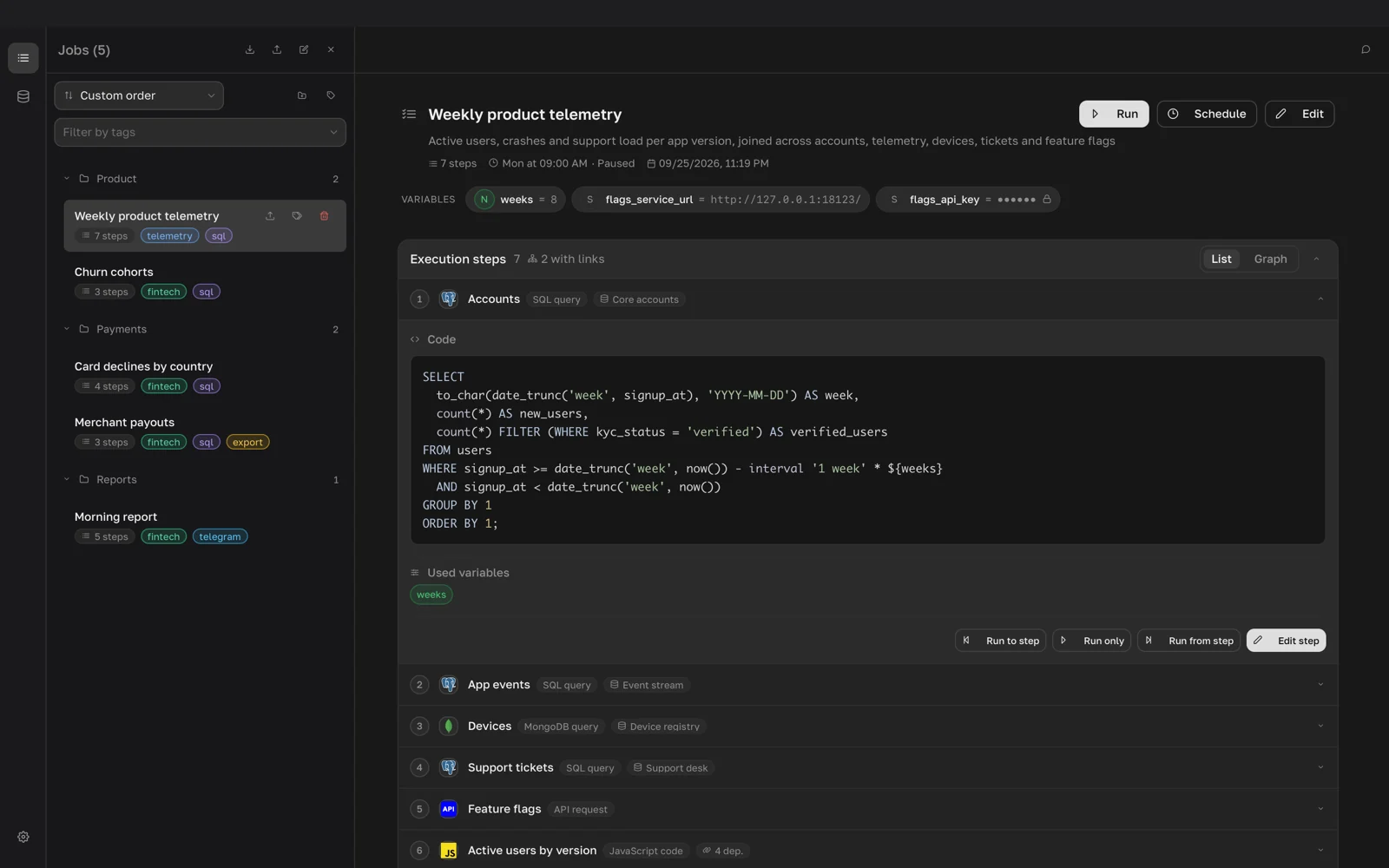
List and Graph views
Execution steps has two views. List shows the steps in order with their type, dependencies and code. Graph draws steps as nodes and dependencies as arrows. Click a node to see its details, then click Edit to open the step or Run to run it with the steps it depends on.
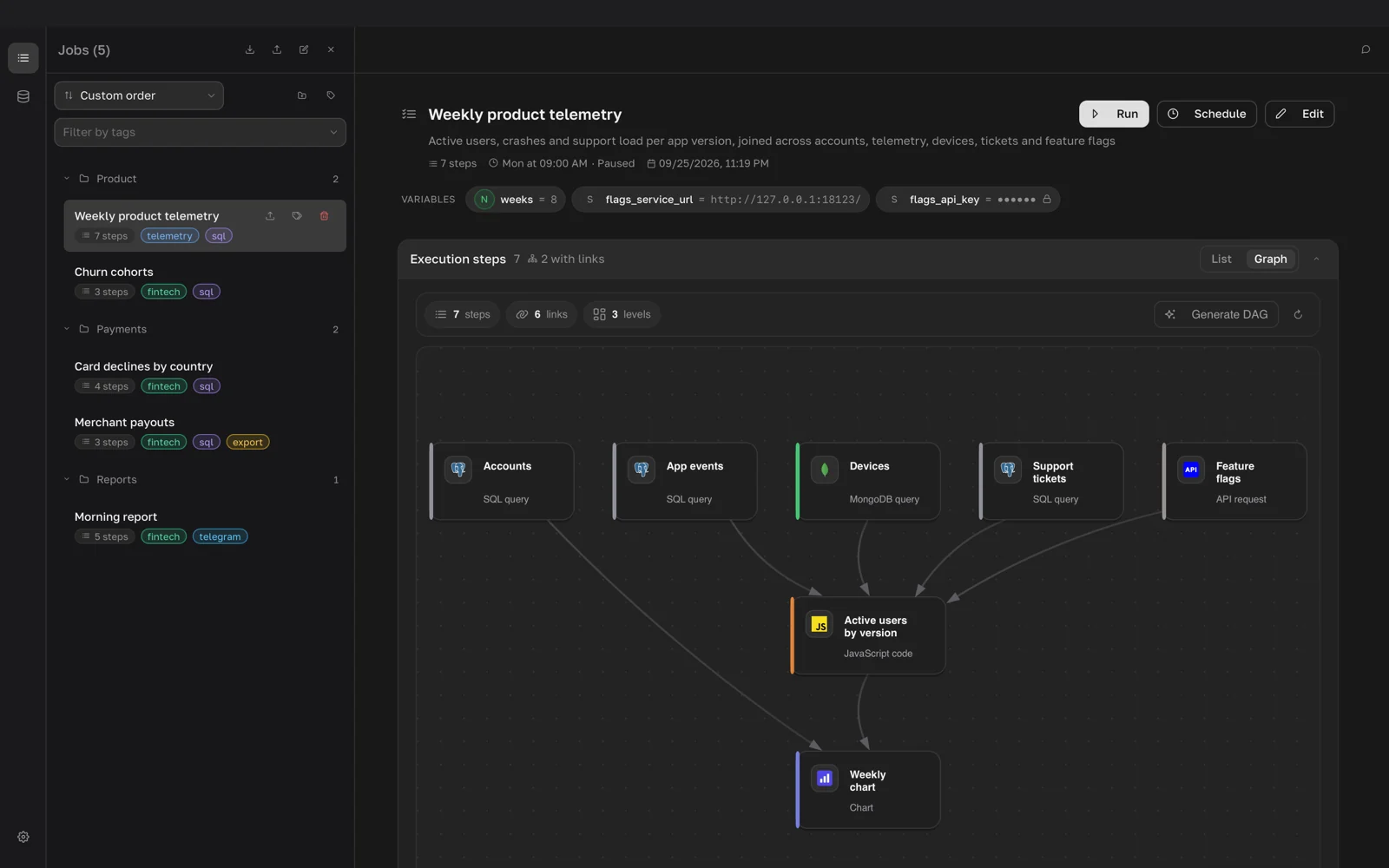
Variables
Variables hold values that change between runs, such as a start date. In the editor, click Add variable under Job variables and set the Name, Type and Value:
- Date: a date or an offset from the start of the run, such as
-7d,+2wornow. - Number: an integer or a decimal number.
- String: text.
Use a variable in a step as ${variable_name}. Names that start with step_ are reserved for step results.
Folders and tags
Click New folder or New tag above the jobs list to create a folder or a tag. To file or tag a job, hover over it and click Folder and tags. Filter by tags shows only the jobs with the chosen tags.