
Connect a database
This guide adds a PostgreSQL database. Other engines use the same dialog with their own fields.
Before you start
Have these details ready: the server host and port, the database name, a user name and a password. If the database is only reachable through a bastion server, you also need the SSH host, user and key or password.
Add the connection
- Click Connections in the left rail.
- In the Data sources section, click + (Add source).
- In Create connection, choose PostgreSQL under PostgreSQL-compatible. Type in Search to filter the list.
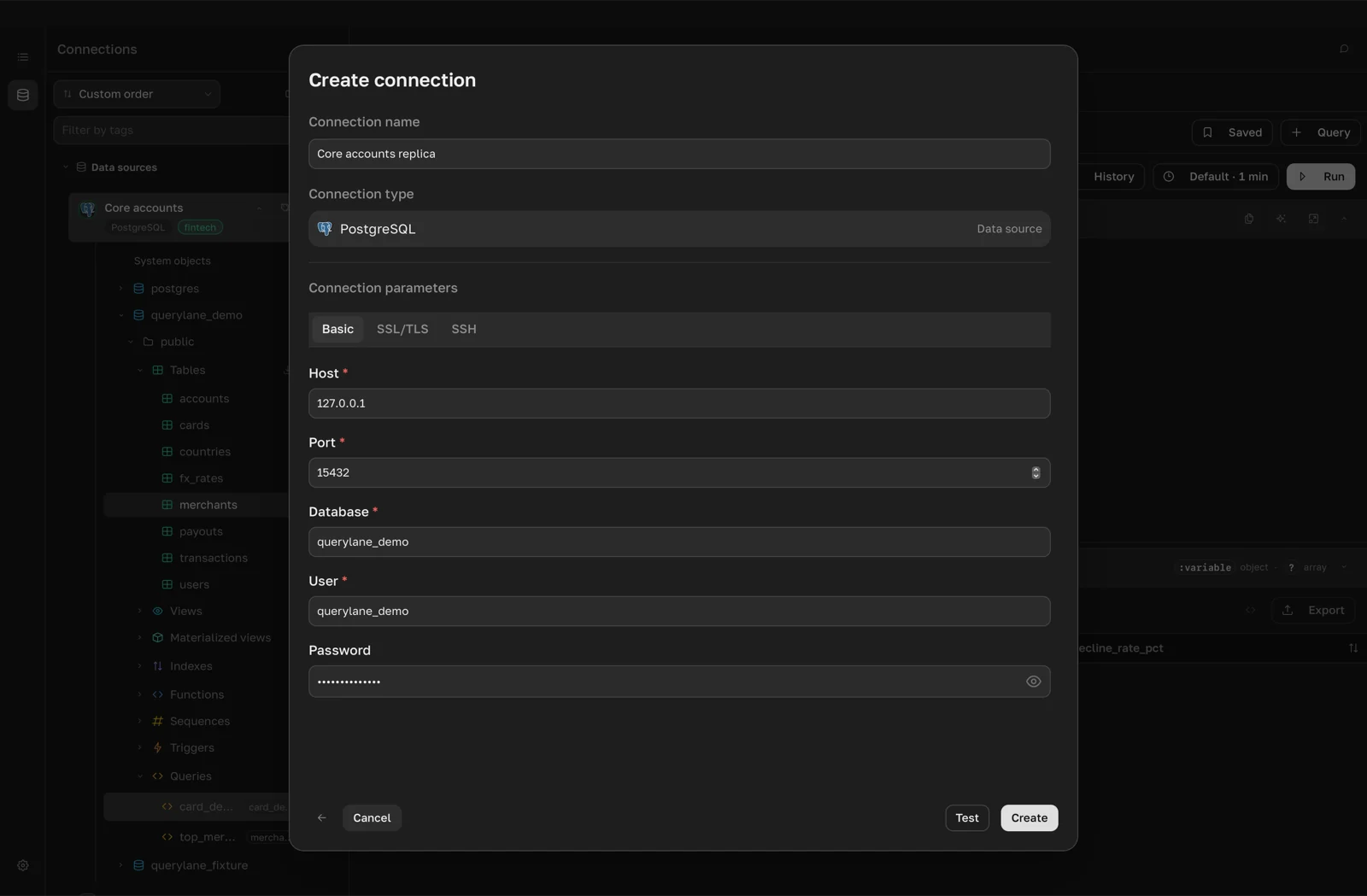
- Enter a Connection name. It must be unique.
- On the Basic tab, fill in the fields:
- Host: the server address, for example
db.example.comorlocalhost. - Port:
5432is filled in for you. - Database: the database to connect to.
- User and Password.
- Host: the server address, for example
- Click Test. When the server answers, Connection works appears next to the button. If the test fails, the error message explains why.
- Click Create.
The new connection appears under Data sources.
Encrypt the connection
To use TLS, open the SSL/TLS tab and turn on Use SSL/TLS. Pick a Verification mode:
- Require encryption: encrypts traffic without checking the certificate.
- Verify CA: checks the server certificate against CA certificate.
- Verify CA and hostname: also checks that the certificate matches the host.
Add a Client certificate and Client key if the server requires them.
Connect through an SSH tunnel
- Open the SSH tab and turn on Use SSH tunnel.
- Fill in SSH host, SSH port and SSH user.
- Choose an Authentication method: Password, Private key or SSH agent.
- Optionally paste the SSH server fingerprint (
SHA256:…). Without it, QueryLane checks the server against~/.ssh/known_hosts.
Keep Host on the Basic tab as the database address seen from the SSH server.
Open the connection
- Double-click the connection under Data sources. QueryLane connects and shows the object tree below it.
- Expand a database, then a schema. Objects are grouped into Tables, Views, Functions and other groups, and Queries holds your saved queries.
To change the settings later, right-click the connection and choose Connection settings. Close connection disconnects it.
Organize connections
When you have many connections, sort and group them from the toolbar above the list:
- Sort by: choose Custom order, By name, By type, Recently created or Recently updated.
- New folder and New tag: create folders and colored tags.
- Right-click a connection and choose Folder and tags to move it into a folder or tag it. You can also drag connections between folders.
- Filter by tags: show only connections with the selected tags. The filter appears once at least one tag exists.
Other engines
The same dialog creates connections to:
- MySQL, MariaDB and Percona Server
- PostgreSQL, CockroachDB and YugabyteDB
- MongoDB, see MongoDB
- ClickHouse
- SQLite, which asks for a Database file instead of a host
- Local files for CSV, JSON and JSONL, see CSV and JSON files
To bring in connections from Navicat or another QueryLane installation, choose Import under Files and import. For all connection options, see Connections.
Next: Run a query.