Runs and artifacts
Every job run is recorded with its status, the result of each step and the files that steps saved. You read runs in Execution history below the job's steps.
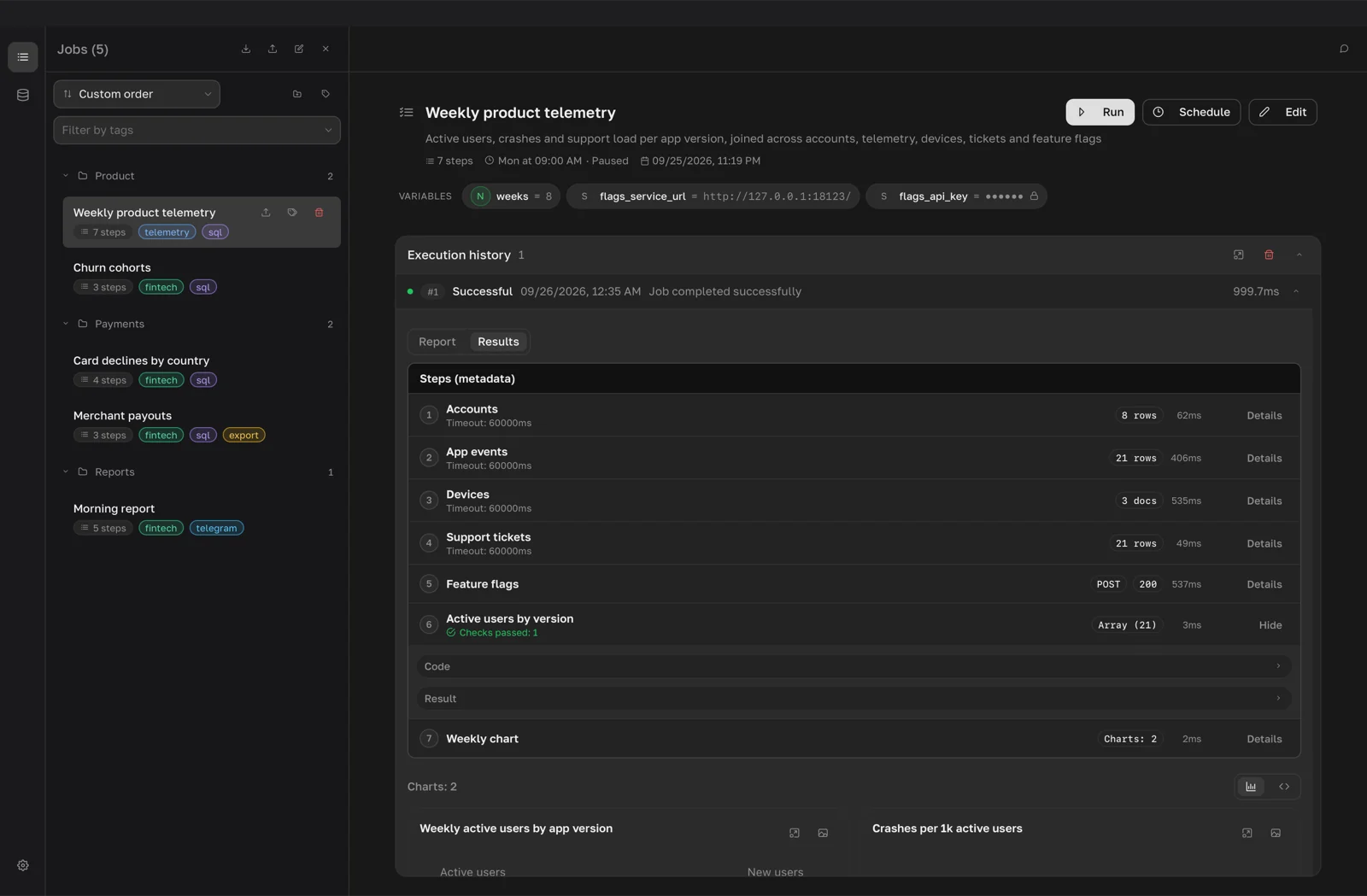
Execution history
Each line in Execution history is one run, newest first. It shows:
- the run number, for example
#12; - Successful or Error;
- a clock icon for a Scheduled run (see Schedules);
- Warnings: 2 when result checks produced warnings;
- the date and time, a short message and the duration.
The list shows 10 runs at first. Click Show 10 more executions at the bottom to see more. To read runs in a larger window, click Open fullscreen in the history header.
QueryLane keeps the latest 50 runs of each job. Older runs are removed together with their results and artifacts.
Read a successful run
Click a run to expand it. QueryLane loads the saved result from disk.
Steps (metadata) lists the steps that ran, with a summary for each: the number of rows or documents, the HTTP method and status of an API step, the number of charts, and the duration. Click Details next to a step to see:
- Code: the step code saved with the run;
- Result: Preview of the first 20 rows, with Copy CSV and Copy JSON;
- Request and Response for API steps;
- Artifacts for steps that saved files.
Below the step list you see the run's final result, the output of the last step. Switch between Table, JSON and Tree, and click Export to save it. CSV is offered for rows; JSON, JSONL and Excel for any result.
When a run has charts, it also has Report and Results tabs. See Charts.
Read a failed run
A failed run expands to Execution error with the failed Step, its Type, the Message, and Technical details and Error code when they are known. Failed result checks, the step's source code and the code after variable substitution are shown below.
The buttons next to the error:
- Edit step opens the failed step in the editor.
- Run from step runs the failed step and the steps that depend on it again. The earlier steps are not run: QueryLane takes their results from a previous run that matches the current steps, variables and connections.
- Explain and fix (the wrench icon) sends the error and the step code to the assistant. It works once an AI provider is set up in Models and providers.
- Install with the package name appears when a JavaScript step needs an npm package that is not installed. After the install, click Run again.
Artifacts
Artifacts are files that steps save during a run. Plugin steps save them: a plugin can report screenshots, HTML pages and other files. For example, when a Browser step fails, it keeps a screenshot and the HTML of the page it was on.
You find artifacts in two places:
- in a successful run, under Details of the step, as Artifacts (3);
- in a failed run, in the Artifacts section of Execution error.
For each file:
- images (PNG, JPEG, WebP, GIF) show as thumbnails. Click a thumbnail to see the full image.
- Open opens the file in its default app.
- Show in Finder reveals the file in Finder.
A run keeps up to 100 MB of artifacts across all its steps. Files that do not fit are deleted, and the run shows Some files were not kept: a run keeps up to 100 MB of artifacts.
Artifacts are stored next to the run result, in a folder named after the result file with the .artifacts suffix:
~/Library/Application Support/app.querylane.desktop/results/<job-id>/Clear history
- Click the trash icon (Clear history) in the Execution history header.
- Confirm with Clear.
QueryLane deletes all runs of this job with their results and artifacts. The job itself does not change.