
Choose a model provider
QueryLane does not include a language model and has no account of its own. The assistant uses the provider you set up: a cloud service with your own API key, or a model server running on your Mac.
Supported providers
| Provider | API key | Default address |
|---|---|---|
| OpenAI | Required | https://api.openai.com/v1 |
| Anthropic | Required | https://api.anthropic.com/v1 |
| Required | https://generativelanguage.googleapis.com/v1beta | |
| OpenRouter | Required | https://openrouter.ai/api/v1 |
| Local > Ollama | Not needed | http://localhost:11434 |
| Local > LM Studio | Not needed | http://localhost:1234 |
| Local > Custom | Not needed | http://localhost:8000 |
Custom is for another server with an OpenAI-compatible API. QueryLane sends chat requests to /v1/chat/completions at its address.
Usage of a cloud provider is billed by that provider under your account.
Set up a provider
- Open Settings > AI.
- In AI provider, choose the provider.
- For Local, choose the Local server type: Ollama, LM Studio or Custom.
- Paste your key into API key. For a local server, leave it empty unless the server asks for a key.
- If needed, enter an address in Base URL. See Use a proxy or another address.
- Choose a Model.
- Click Test connection. When the check passes, the status shows AI connection checked.
QueryLane saves each change as you make it. The assistant panel shows AI unavailable with the reason until a key and a model are set.
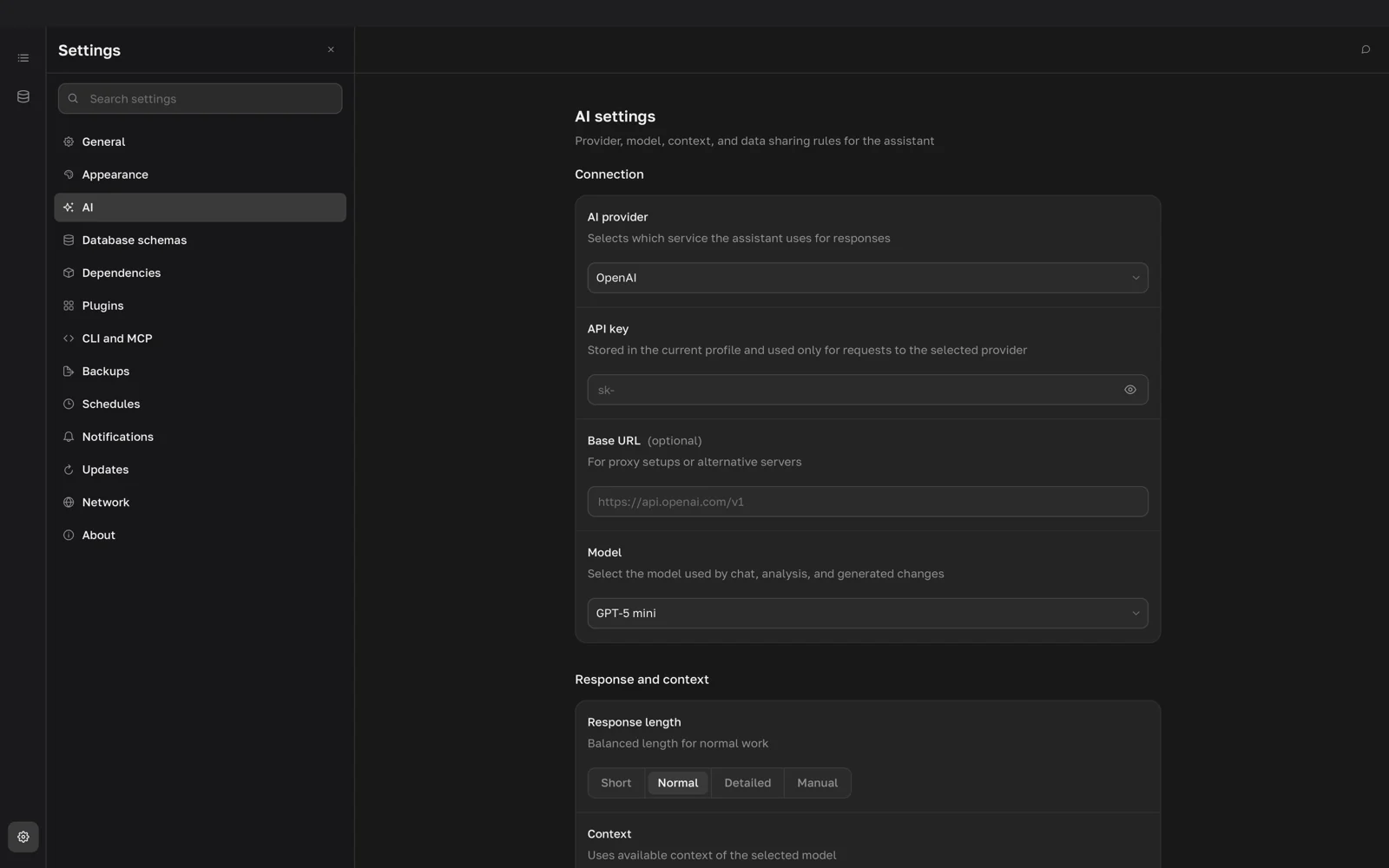
Choose a model
How the Model list is filled depends on the provider:
- OpenAI and Google: with a key set, QueryLane loads the models available to your account. Until then it shows a built-in list.
- Anthropic: a built-in list of Claude models.
- OpenRouter: the OpenRouter catalog. With Auto you pick a model grouped by vendor, with its price and context size. With Specify model you type the model name. Refresh model list reloads the catalog.
- Ollama and LM Studio: the models on your server, loaded when you choose the server type. Download or load a model in the server first. For LM Studio, Auto, Specify model and Refresh model list work as for OpenRouter.
- Custom: the list has one entry, Custom model. QueryLane does not load models from a custom server.
The assistant uses tools to read and change jobs, so pick a model that supports tool calling. If the model does not accept tools, the assistant still answers, but without them.
Use a proxy or another address
For a cloud provider, Base URL replaces the default API address. Use it when your requests must go through a proxy or a gateway that speaks the same API as the provider. Leave it empty to use the default address.
For a local server, Base URL is the address of the server. Change it when the server listens on another port or runs on another machine.
If the check fails with Local AI server blocks browser access, the server rejects requests from the app. Allow cross-origin (CORS) requests in the server settings.
Response and context
The Response and context group sets how the model is used:
- Response length: Short, Normal, Detailed, or Manual with an exact token limit.
- Context: Auto uses the context window of the model, Economical limits it to 4K tokens, Manual sets an exact size.
- Temperature: from 0 for predictable answers to 2 for creative ones.
Settings per provider
Each provider keeps its own API key, model and settings. When you switch back to a provider, QueryLane restores them. Reset returns all providers to their defaults and removes all saved API keys.
To decide what data the model may see, continue with Data privacy.