
Telegram
The official Telegram plugin sends messages from your jobs to a Telegram chat through a bot you own. You use it in two ways: a Telegram message step inside a job, and run reports sent after a job run. The plugin ships as a single program and needs only Network access.
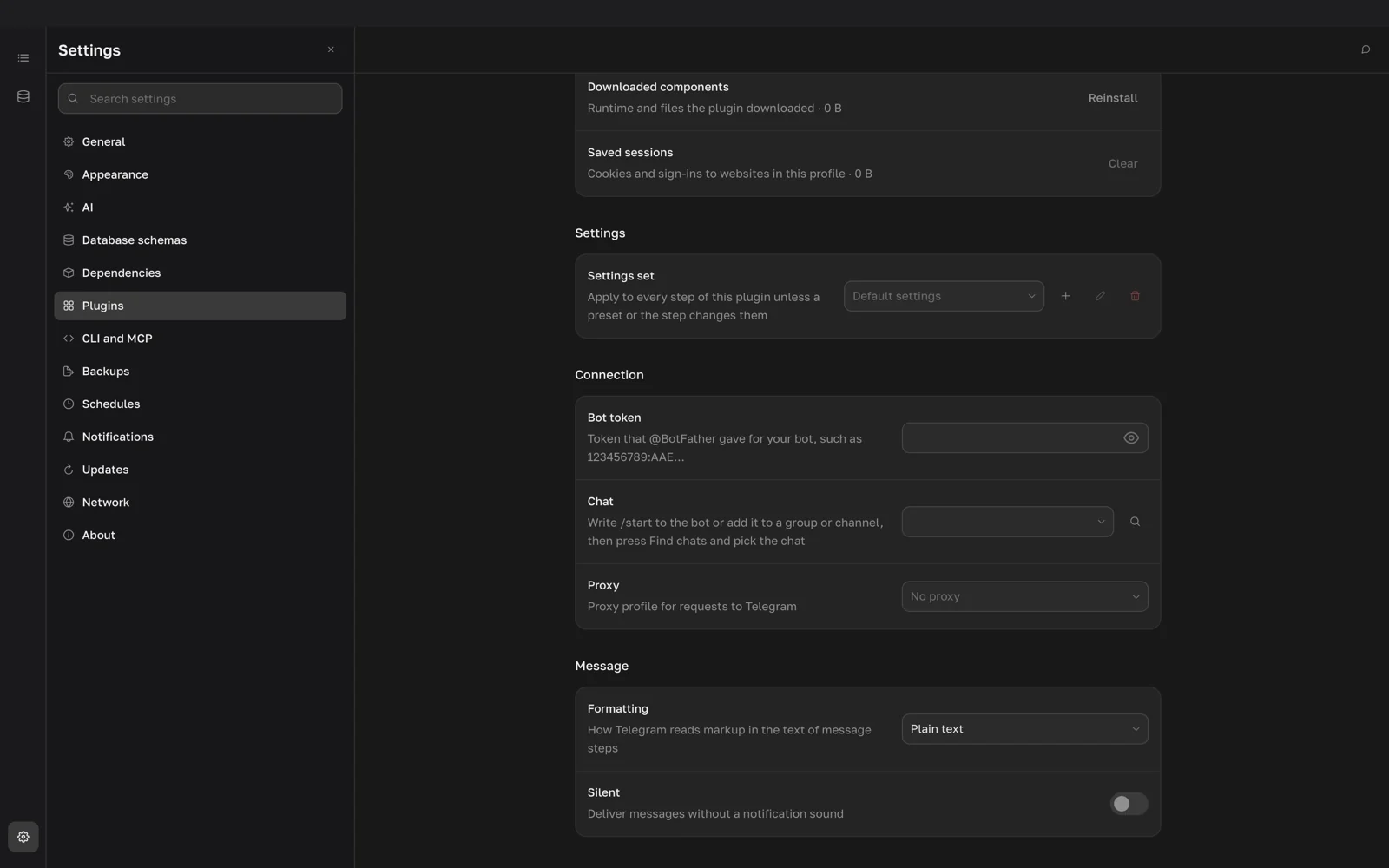
Connect your bot
Create a bot with @BotFather in Telegram and copy the token it gives you, such as 123456789:AAE….
- Install Telegram in Settings > Plugins. See Using plugins.
- On the plugin page, paste the token into Bot token.
- Write
/startto the bot, or add it to a group or channel and post a message there. - Next to Chat, click the search button (Find values) and pick the chat. You can also type a chat ID.
- If Telegram is reachable only through a proxy, pick a profile in Proxy. Proxy profiles live in Settings > Network.
The list shows chats where the bot got messages or was added in the last 24 hours. If it is empty, write to the bot again and search once more.
In the Message group, Formatting is Plain text (default), HTML or MarkdownV2, and Silent delivers messages without a notification sound.
The bot token is secret and never goes into exported jobs.
Send a message from a job
- In the job editor, add a step and choose Telegram message as its type.
- Write the message text in the editor.
- Optionally, set Result file and Screenshots and files under the editor.
- Run the job.
A test run from the step editor sends a real message, so use a test chat.
The text is a template. ${name} becomes the value of the job variable name, and ${step_<id>} becomes the result of an earlier step: text as is, numbers as digits, lists and objects as compact JSON. A referenced step runs before the message. A name that matches nothing stays as written.
A whole table arrives as one long JSON line, so summarize rows in a JavaScript step and insert that step instead:
Sales for ${report_date}
${step_summary}
Formatting
- Plain text sends the text exactly as written, whatever characters the inserted values contain.
- HTML accepts Telegram's HTML tags, such as
<b>,<i>,<code>and<a href="…">. Escape<,>and&in inserted values. - MarkdownV2 needs a backslash before characters such as
_,*,.,-and!outside markup, in inserted values too. One unescaped.makes Telegram reject the message, so prefer HTML for text with values.
To format one step differently, change Formatting in Step settings.
A message holds up to 4096 characters. Longer text goes out as several messages split at line breaks. A step with empty text sends only its attachments.
Attach rows and files
Result file attaches rows as CSV, Excel (XLSX) or JSON (default No file). Each step in the message step's dependencies becomes one file when it returned a list of rows; a step you only insert with ${step_<id>} is not attached. Steps that returned a number, text or an object are skipped. Without dependencies, the plugin attaches the last earlier step if it returned rows. Files are named <job> · <step> · <date>. CSV is UTF-8 with a byte order mark for Excel, and XLSX has a bold header row.
Screenshots and files adds what earlier steps saved, such as pages captured by the Browser plugin. Images up to 10 MB arrive as photos, other files as documents.
Text up to 1024 characters becomes the caption of the files; longer text arrives first. Telegram accepts files up to 50 MB. A larger file is only named at the end of the text, and the step continues.
The plugin does not send charts. To share the data behind a chart, attach the step that returns the rows.
Get run reports
- Open the job in the editor.
- In Notifications, turn on Notify next to Telegram.
- Choose When to write: Only on failure (default) or After every run.
- Choose Which runs: All runs (default), Scheduled runs or Manual runs. Manual runs include runs from the app, the command line and agents.
- Optionally, set Result file to attach the rows of the last step that returned rows. Screenshots and files is on by default and adds the run's screenshots, such as the page at the moment of a failure.
A report is plain text in the interface language: whether the job finished or failed, how and when the run started, how long it took and, for a failure, the step and its error.
Reports go to the chat from the plugin settings. To send a job's reports elsewhere, pick a preset with another Chat or change Chat in Job settings.